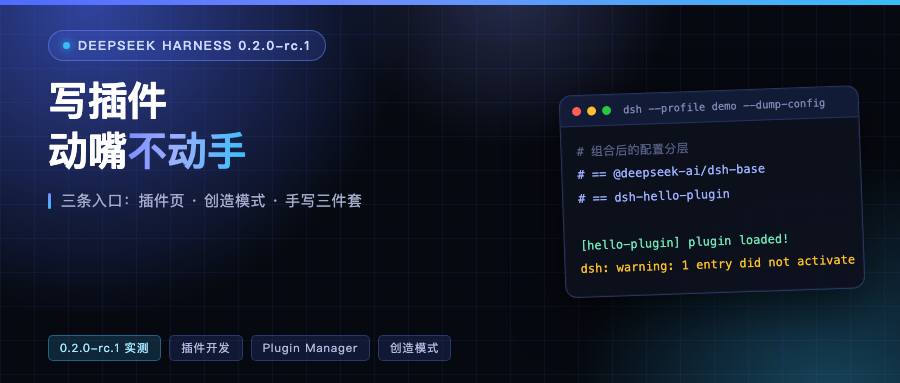
The first release candidate of the 0.2 line
On September 28 DeepSeek Harness shipped v0.2.0-rc.1. Two items in the release notes concern plugins: an improved plugin management UI and install guidance, and a creation mode with fleshed-out plugin development instructions plus an experience skill.
Note it sits on the npm next tag. latest is still at 0.1.7-rc.2, so the default command will not get you this version.
I ran the new version in an isolated directory (separate prefix and DSH_HOME), leaving the instance running on this machine untouched. Everything below comes from 0.2.0-rc.1.
There are three paths now
The new version spreads writing a plugin across three entry points, with the bar dropping each time.
The first is the Plugin page in the web sidebar. Start and stop plugin entries, tick bundle checkboxes, install or remove third-party bundles, all clicked in the UI without hand-editing config files.
The second is creation mode. Pick it when creating a task and tell the agent to install something in one sentence. The official example prompt has exactly that tone:
Help me write a DSH plugin that adds a Project Notes entry to the sidebar, lists the Markdown files in the current workspace, and previews their content when clicked. Complete the install and verify the page opens.
The third is still hand-writing the three files, the shortest and most controllable. All three paths lead to the same mechanism, so understand the mechanism first and the other two stop being black boxes.
The shortest path is still three files
The official tutorial’s directory is just three files:
hello-plugin/
├── package.json       # declares dsh.bundle
├── cordis.patch.yml   # the config layer this package contributes
└── index.js           # the plugin entry the patch line references
The part of package.json that actually matters is the dsh.bundle block:
{
  "name": "dsh-hello-plugin",
  "type": "module",
  "main": "index.js",
  "dsh": { "bundle": { "patch": "./cordis.patch.yml" } }
}
index.js is the entry for a Cordis plugin. On load the framework calls apply with a context, and through that ctx the plugin registers everything it contributes:
export const name = 'hello-plugin'

export function apply() {
  console.log('[hello-plugin] plugin loaded!')
}
cordis.patch.yml is the one line you contribute. Write the package name here, not a file path, so Node can find you in the profile’s node_modules:
- insert:
    - id: hello
      name: dsh-hello-plugin
Installing is one command. The CLI entry is dsh, and dsh plugin --profile <name> forwards its arguments to pnpm in the profile directory:
dsh plugin --profile demo add ./hello-plugin
I stepped in a hole here: I cd’d into the package directory and then wrote add ./hello-plugin. DeepSeek Harness resolves against the current directory, recorded the dependency as link:/private/tmp/hello-plugin/hello-plugin, one path segment too deep, and startup failed with cannot resolve profile bundle. I reproduced this on both versions. You have to run it from the package’s parent directory.
After install, check two layers
The first is config. dsh --profile demo --dump-config prints the full merged tree. I only kept the layer markers, and the second one is mine.
# == @deepseek-ai/dsh-base
# == dsh-hello-plugin
The second is runtime. After startup [hello-plugin] plugin loaded! shows up on screen. At this point, from creating the directory to seeing that line is three commands.
Two things the new version adds for plugin developers
One is a command line flag. The new version has --dump-config-schema, which prints the JSON Schema for profile entries and patches. My output was 156,000 characters with 73 definitions, including entry, patch, patchList, includePatch. Before, confirming which fields a line could actually take meant reading source. Now you can ask the schema.
The other is inside the app. Creation mode ships with a plugin development guide, and it reads like this:
Creation mode has the standard task tools, plus runtime checks, persistent plugin management, and development guidance for Cordis plugins and Agent presets. You can write plugins to add features or UI, or combine tools and prompts to create a mode suited to a specific task.
The guide also explains the relationship between plugins and modes: a plugin adds capabilities to DeepSeek Harness, such as tools, service connections or UI entry points; a mode is an Agent preset that decides which tools a task can use and how it works. Custom modes can use plugins you wrote yourself.
The section on how to make results take effect reads more like a reminder: you can have the Agent do the install and verify the actual result, and a plugin may load immediately or need a restart depending on what changed.
Letting the agent do it, and where the boundaries are
The tool available in creation mode is called plugin_manager. I took its real description from a recorded snapshot in the repo:
List plugins or bundles in the current profile, enable or disable them, install a bundle, or remove an installed bundle. Every action requires danger-full-access permission or approval for this call. Approval does not change the session permission mode. Changes affect every session in this profile.
It takes nine parameters. Besides action and target, there is registry (which source to look in), approvedBuilds (approve dependency build scripts on your behalf), and a pair for version exemptions, runtimeVersion and acceptRisk.
Three boundaries in that description deserve pulling out.
First, every operation needs danger-full-access or a one-off approval for this call. Approval does not change the session’s permission mode, meaning approving once is not a standing pass.
Second, changes are written into the profile and affect every session under it. Not just the conversation you are in.
Third, installed Host code runs inside the host process, outside the workspace sandbox. The weight of that sentence: a plugin and the permissions it can reach equal your own permissions in that terminal.
Incompatible plugins get blocked
The new version adds a pre-check in package management: if the runtime version your plugin declares does not match this DeepSeek Harness, the operation fails before pnpm starts, so nothing gets downloaded and no build script runs.
If you really want to install it you go through a version exemption. The exemption is written into the profile’s own compatibility.json, mapping an exact package@version to an exact runtime version, and it must carry acceptRisk: true. Three matching CLI commands:
dsh plugin --profile web version-exemptions
dsh plugin --profile web allow-version <package@version> --dsh-version <runtime> --accept-risk
dsh plugin --profile web revoke-version <package@version> --dsh-version <runtime>
Neither a plugin upgrade nor a DeepSeek Harness upgrade inherits the grant. You have to decide again. I think the design is right: an exemption is a one-time informed decision, not a permanent pass.
Layer order, and the rule that costs people the most
The effective config merges over an empty root in four layers, later layers overriding earlier ones line by line:
- Each bundle patch in the profile’s
dsh.profile.bundleslist, in list order - The profile’s own
cordis.patch.yml - The home-level
$DSH_HOME/cordis.patch.yml, shared by all profiles - Every
--patch <path>on the command line, in argv order
The rule that costs people the most: a patch replaces the target line’s entire config, it does not deep-merge keys. To override a line from an earlier layer you must restate every key that line needs. Write only the one you changed and the rest get wiped.
The flip side is good news: users can override your line in their own profile’s cordis.patch.yml without touching your package. So pick defaults that users will most likely keep.
The same failure, run once on each version
The official Cordis tutorial says a failed plugin load reports a clear error, but a module that cannot be resolved (wrong path or package name) only logs and does not crash.
On 0.1.6-alpha.2 that did not match. I made apply throw, and the whole plugin tree failed to load, the process exited 1, and the first line named the plugin entry. Wrong package name, also exit 1, with Cannot find package.
On 0.2.0-rc.1 both failures became warnings and the process stayed alive:
dsh: warning: 1 entry did not activate
hello (dsh-hello-plugin): Error: apply exploded
The bad package name is even shorter, a single line: hello (dsh-hello-pluginX): failed to import.
This is a real behavior change in the new version. My read is that it is friendlier, but also quieter: a plugin not taking effect does not necessarily mean it failed to install, it may just be that entry not activating. After upgrading, if something looks installed but does nothing, search the startup output for did not activate first. Much faster than reinstalling repeatedly.
Last
The minimum path to doing this is still three steps: create the directory and put three files in it, install with dsh plugin --profile <your profile> add ./your-plugin-dir, confirm the layer appears with --dump-config. If you want less work, just say it out loud in creation mode and let it install and then verify for you.
What I want to try next is --dump-config-schema, generating a cheat sheet of available fields for a plugin line from the schema. Less work than digging through docs.
What are you going to hang on DeepSeek Harness? A new tool for the model, or a card in the sidebar like the batch of community plugins? Tell me in the comments. Maybe the next post is about yours.
References:
- Packaging and installing plugins (official): https://github.com/deepseek-ai/deepseek-harness/blob/main/docs/user/develop/basic/publish.zh.md
- Persisting plugin config through prompts (creation mode): https://github.com/deepseek-ai/deepseek-harness/blob/main/docs/user/develop/practice/dynamic-cordis.zh.md
- Plugin Manager package reference: https://github.com/deepseek-ai/deepseek-harness/blob/main/packages/boot/plugin-manager/README.zh.md
- DeepSeek Harness v0.2.0-rc.1: https://github.com/deepseek-ai/deepseek-harness/releases/tag/dsh-v0.2.0-rc.1
Verification boundary: the three-file install, the --dump-config layer output, the startup log, both failure behaviors, the size of the --dump-config-schema output, and the parameters and description of plugin_manager were all checked on 0.2.0-rc.1 locally (installed under an isolated prefix and isolated DSH_HOME, with the running instance untouched); the 0.1.6-alpha.2 comparison data also comes from local runs. The path where creation mode has the agent install a plugin was not actually run, because this machine has no usable model key; that section is based on the official docs and the in-app guide text.