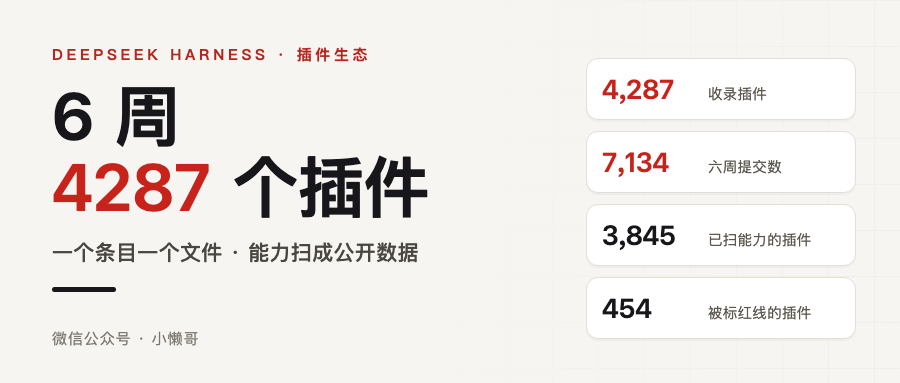
Open the list and the first thing you see is 4,287
awesome-dsh-plugin.com has a search box at the top with 4287 / 4287 in the bottom right. Below it, a row of category tags: UI 731, tools and capabilities 567, development and runtime 312, sessions and messaging 281, workflow 260, usage and billing 226, models 206, memory 202…

That number did not accumulate slowly. The repo was created on August 13 and turned exactly six weeks old on September 25. Over seven thousand commits, a single-week peak of 2,178. ⭐16.8k, 3.3k forks, and the index is still moving forward by the hour.
An ecosystem growing fast is not news. What I actually wanted to work out is something else: with that many third-party plugins, how do you know which one is safe to install.
One file per plugin, forced by merge conflicts
Start with how the list itself is maintained. Both READMEs and the site are generated. The source data lives in data/plugins/, one YAML file per plugin:
url: https://github.com/owner/repo
name: owner/repo
category: ui
description:
  en: One-line description ending with a period.
  zh: 一句话描述,以句号结尾。
contributing.md has a line specifically about why: everyone used to append to the same spot in the same README section, so merging one PR broke the next one.
That sentence is more honest than a lot of architecture docs. Four thousand entries, all inserted at the same point in the same file, and the PR queue jams itself. Split into one file per entry, every commit lands on a different path, and the conflict surface disappears.
The price is that the generator has to be picky. It is picky. I will trip over it later.
The installable unit is not a plugin, it is a bundle
This part stopped me when I read the docs, because it separates two things very cleanly:
- A bundle is an npm package declaring
dsh.bundleinpackage.json. It answers what does this package contribute, and what it carries is a patch file - A profile is a directory under
$DSH_HOME/profiles/<name>declaringdsh.profile. It answers which bundles make up this configuration, and in what order
A bundle is what you write and distribute. A profile is what a user starts with dsh --profile <name>. Nothing is both.
I opened the profile on my own machine and had a look. The structure is plain: package.json lists four official bundles, next to it sit cordis.yml and cordis.patch.yml. Both files hold a single [], but the comment lays out the layering:
dsh profile root — an empty entry list. The tree is composed as patches: each bundle in package.json’s dsh.profile.bundles, then cordis.patch.yml, then any –patch overlays. Edit cordis.patch.yml, not this file.
The composition order: bundles layered in sequence, then the profile’s own patch, then --patch overlays.
A detail I like: dsh plugin passes its arguments straight through to pnpm. I ran dsh plugin --profile web --help and got pnpm’s help page. Which means a profile is essentially a pnpm workspace, plugins are its dependencies, and installing one is the pnpm add flow.
What each plugin touches is scanned into public data
This is, I think, the most interesting thing in the whole ecosystem.
Every plugin on the site shows what it touches. The data is in data/capabilities.json, produced by a tool called dsh-trust-check. 3,845 scanned so far. The distribution:
- Reads files 75.0%
- Writes files 58.8%
- Reads environment variables 57.4%
- Network access 56.8%
- Runs shell 42.5%
- Touches credentials 11.9%
- Calls models 9.1%, dynamic code execution 9.0%, accesses the host runtime 7.7%
A single capability is not scary. Combinations are. 178 of them want credentials + shell + network + file writes at the same time.
The scan draws red lines. 454 plugins carry one. Three rough categories:
- Reads credentials and also has network access. The most common kind
- Reaches a domain over plaintext
http:// - Reaches the network by literal IP. I saw one written as
169.254.169.254, which is the cloud metadata endpoint
To be clear: this is capability disclosure, not a verdict. A flag means it can do something, not that it did. Several of the ones I looked at were obviously placeholder values from example repos; one plugin’s red line listed evil.com:3080 and 1.2.3.4. The site’s own disclaimer says it plainly: being listed is not an endorsement.
But the act of scanning capabilities into public data is useful on its own: you can cut out a large chunk before reading a single line of source.
Where the client comes from: two official paths
Going through the official site, I found something: there is no download-the-client entry. Search the Chinese page end to end and you will not find the word download, desktop or client.
What they give is two paths, under Getting Started on deepseek.com/harness:
# quick try: install Node.js, start the web UI with npx
npx @deepseek-ai/dsh web

# install from source
git clone https://github.com/deepseek-ai/deepseek-harness
Follow the official command and you hit a hole: on npm this package’s latest is stuck at 0.1.5-rc.3 while next is already 0.1.7-rc.2. So typing npx @deepseek-ai/dsh web gets you the old version. For the new one you have to say so:
npx -y @deepseek-ai/dsh@next web
The official desktop build ships, you just cannot search for it
This section is a correction. My first draft said there is no public download for the official desktop app. That was wrong.
The official desktop app lives in apps/desktop in the repo and bundles a whole Python and pnpm runtime. It really is being distributed, just not from a download page. It is part of an update channel, and the manifests are two YAML files:
https://download.deepseek.com/dsh-desk/feeds/mac-arm64/nightly-mac.yml
https://download.deepseek.com/dsh-desk/feeds/win-x64/nightly.yml
Packages sit under bin/mac-arm64/ and bin/win-x64/, named deepseek-harness-<version>-<platform>.zip or .exe. The mac-arm64 one is 355MB, Windows x64 is 274MB. Only those two platforms, only a nightly channel (there is no latest manifest, meaning no stable build yet), and it only started at 0.1.7-rc.1.
I got it wrong last time because I searched for the word download and drew a conclusion from the results. @deepseek-ai/dsh-desktop is indeed a 404 on npm (that private Host package was never published) and the site indeed has no download entry. But the package has been shipping the whole time. I wrote a separate piece on this one, with the manifest text, the sha512 checksums and a breakdown of what is inside.
The community has several wrappers too
The community desktop builds are still worth knowing about, because the official one ships only macOS arm64 and Windows x64, and only as nightly. They are also what you run into first when you search desktop in the official repo’s Discussions (7,673 threads):
dataelement/dsh-desktop, ⭐9,132, MIT, sitedshdesktop.com. DMG for mac arm64/x64 plus a Windows setup.exe (162MB); signed and notarized for macOS. Ships often: six releases between September 12 and 23, and the Windows installer passed thirteen thousand downloadszsyu9779/dsh-desktop, built with Wails, very small: the darwin-universal DMG is only 9MB, the exe 11MB, Linux 4MBfufankeji/deepseek-harness-studio, ⭐661, no releases on GitHub, downloads hosted on their own site- There is also a DS Desktop on the Microsoft Store, with the tagline no Node.js, no command line
None of these come from DeepSeek, and the READMEs say they are third-party work. One thing to watch when choosing: a wrapper tracks one specific dsh version. dshdesktop, for instance, is built on 0.1.5-rc.2 while the official line is at 0.1.7-rc.2, with voice input and account login in between. The ecosystem is still moving; the wrapper may not keep up.
Be careful when you go looking. These wrappers are a layer over the dsh on your machine, and the permissions they get are dsh’s permissions. The official capability scan covers plugins, not desktop shells.
The official entry points, collected here:
- Chinese site: https://www.deepseek.com/harness/
- Developer docs: https://deepseek-harness.github.io/deepseek-harness/guide/quickstart
- Official desktop mac update feed: https://download.deepseek.com/dsh-desk/feeds/mac-arm64/nightly-mac.yml
- Official desktop Windows update feed: https://download.deepseek.com/dsh-desk/feeds/win-x64/nightly.yml
- Community plugins (the same Community Plugins link on the official site): https://github.com/topics/dsh-plugin
- Where community desktop builds gather (official repo Discussions): https://github.com/deepseek-ai/deepseek-harness/discussions
- Source: https://github.com/deepseek-ai/deepseek-harness
There is one more gate at install time
The site hands you two lines for installing:
Both are given straight on the site, with a one-click copy on the right:

# from npm (prebuilt)
dsh plugin --profile web add @deepseek-harness-tui/dsh-tui

# from GitHub (first run asks about allowBuilds, retry as prompted)
dsh plugin --profile web add github:owner/repo
The GitHub one will most likely stop on ERR_PNPM_GIT_DEP_PREPARE_NOT_ALLOWED or ERR_PNPM_IGNORED_BUILDS the first time, because pnpm does not let third-party packages run install scripts by default. dsh tells you which key to add under allowBuilds in the profile’s pnpm-workspace.yaml. Re-run and it goes through.
I will copy the wording here, because it is more direct than a lot of security docs:
Any plugin you install runs third-party code with your permissions. It can read your files, use your credentials, reach the network, and tool approval does not isolate it. Allowing a build is a trust decision: install only sources you trust, and pin the commit (
github:owner/repo#sha).
I did not actually install one. I stopped there, because by that sentence, installing a third-party plugin means running someone else’s code on your machine. This article does not need that evidence.
I submitted a plugin following the docs, and hit a hole
One inclusion rule is harsh: declaring only dsh.client is the most common reason for rejection. It will not even install; you have to declare dsh.bundle. On top of that the repo has to be at least 1 day old (checked automatically, no commit-count threshold, and they wrote that commit history measures habit, not quality), it needs real code, it needs the dsh-plugin topic, and the description gets checked against the code.
So I started with the cheapest part: adding an entry.
I created a file in my local clone, filled in the template from the docs, ran the generator, and got rejected:
A description containing ": " must be quoted:
  en: Demo entry: verifies the one-file submission flow end to end.
becomes
  en: 'Demo entry: verifies the one-file submission flow end to end.'
YAML read : (colon plus space) as a nested key. That hole is written right there in contributing.md and I still stepped in it. The funny part is the error explains itself, because it hands you the fix along the way.
Quoted it and re-ran:
README.md: regenerated (4288 entries)
README.zh.md: regenerated (4288 entries)
In git status, apart from my new file, only two READMEs changed, one added line each:
README.md:908:   - [hermes-test/dsh-demo](...) - Demo entry: verifies the one-file submission flow end to end.
README.zh.md:908: - [hermes-test/dsh-demo](...) — 演示条目:验证一个文件即完整提交的流程。
One YAML file is the entire submission. The Chinese one grew itself; I only filled in the zh field.
So how I pick a plugin
Putting the pieces together, my own order goes like this:
- Look at 30-day downloads before stars. These plugins’ stars are often dragged up by the host repo; the 29,567 sitting at the top of the star column belongs to the repo itself, and the plugin is just a directory under its
examples/. Downloads are closer to how many people actually use it. - Look at when it was listed. The detail page has an
Addedfield. Anything that came in on August 14 has been through six weeks of iteration. - Look at the capability list. I generally do not install something that wants credentials, shell and network all at once.
- Installing from GitHub, pin the commit. The site suggests the same.
As for what it actually does, that still means reading code. The capability scan’s job is shrinking four thousand down to something you can count on your fingers. The last few steps have no shortcut.
Wrapping up
Six weeks to 4,287 plugins. That pace says the everything-is-a-plugin design of DeepSeek Harness is something other people can actually build on. What keeps it from feeling like a wild bazaar is three small decisions: one file per entry, so merges work; capabilities scanned into public data, so you can filter; build approval at install time, so at least what you are authorizing is explicit.
Links:
- Site: https://awesome-dsh-plugin.com
- List repo: https://github.com/awesome-dsh-plugin/awesome-dsh-plugin
- Official guide, Packaging and installing plugins: https://github.com/deepseek-ai/deepseek-harness/blob/master/docs/user/develop/basic/publish.zh.md
- Another entry point:
dsh-market, which lets you browse and install straight from this list. 82,491 installs, first in the whole list