The problem swapping agents will not fix
A general-purpose agent writing ArkTS will crash and burn, for exactly three reasons. It does not know ArkTS decorators or build commands; it has no official docs to look things up in, so it invents APIs from memory; and even when the code is right, it has no idea how to build the package, install it on a device, and ship it to the app store.
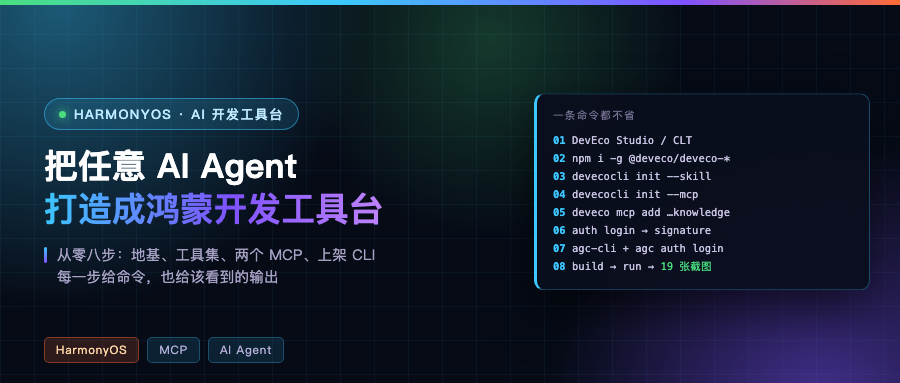
The holes can be plugged one at a time. Huawei and the community turned the plugging into tools you can bolt on externally, and going from nothing to usable is eight steps. This post walks them in order, with the command for each step and the output you should expect. At the end I wire all three pieces into a real agent, DeepSeek Harness, to see whether it actually buys it.
Four things to install
DevEco Studio, or its command line tools, is the foundation. Building, devices, signing, all the real work sits on it. @deveco/deveco-cli is the toolset, command name devecocli, and its job is installing capabilities into other agents.
The two MCPs do different jobs. The remote developer knowledge MCP handles doc lookup. The local deveco-mcp handles syntax checking for .ets and C/C++. The last piece is agc-cli, a community-written publishing CLI that drags AGC console operations back into the terminal.
Also get a Huawei developer account ready first. Installing the foundation and generating signatures both need it.
Step one: install the foundation
Go to the developer alliance download center (developer.huawei.com/consumer/cn/download/), log in, and pick the macOS build. On Apple Silicon you want the macOS ARM one.
Note the path after install. The default is /Applications/DevEco-Studio.app. You cannot skip this step, every real job devecocli does later depends on it.
If you do not want the whole IDE, the other path is the command line tools on the same page. Much smaller, but the official docs call one thing out:
Set
DEVECO_CLI_CLT_PATHto the Command Line Tools root when DevEco Studio is not installed; CLT is not discovered automatically from PATH or default installation directories.
It will not be discovered from PATH or the default directory on its own. You have to point an environment variable at it by hand:
# IDE installed
export DEVECO_CLI_STUDIO_PATH=/Applications/DevEco-Studio.app
# command line tools only
export DEVECO_CLI_CLT_PATH=$HOME/command-line-tools
Put those in ~/.zshrc to make them stick. On first launch Studio walks you through downloading the HarmonyOS SDK. That needs network and it is slow, so do not sit there waiting somewhere offline.
Step two: install the devecocli toolset
Two npm packages together:
npm install -g @deveco/deveco-cli @deveco/deveco-code
You get two commands. deveco is the Agent itself, customized from OpenCode; devecocli is the toolset. 255 dependencies between the two packages, 267 MB.
Check it before moving on:
devecocli --help
devecocli device list
The second one lists connected devices. If it says DevEco Studio cannot be found, the problem is not this command, go back and check that environment variable from step one.
Step three: install the skill pack into your agent
This is the answer to the any agent half, one command:
devecocli init --skill --agent dsh,cursor,codex
Without –agent it installs into every host it recognizes. To install into a specific directory use –path, and add -f to overwrite existing config.
What lands looks like this:
node_modules/@deveco/deveco-cli-common/SKILL.md
24,690 bytes, and the trigger conditions at the top are blunt:
Use ‘devecocli’ for HarmonyOS apps (scaffold, build, run, debug, devices, emulators, logs, docs, UI inspection, 鸿蒙开发文档, skills). Use it if workspace has build-profile.json5 or oh-package.json5, or user mentions HarmonyOS, 鸿蒙, DevEco, ArkTS, ArkUI …
Once the agent reads that, hitting a HarmonyOS project or hearing the word HarmonyOS makes it think of devecocli on its own. The same package also carries an offline doc corpus. docs.zip is 40.5 MB, unpacking to 31,477 files, plus a 15.2 MB search index. That is what devecocli docs search queries, and it works without network.
Supported hosts are the official list: atomcode, codebuddy, claude-code, codex, cursor, dsh, deveco, opencode, pi, qoder, trae-cn. Eleven of them. For hosts outside the list there is a crude workaround: a skill pack is ultimately one Markdown file plus a doc corpus, so dropping it into that host’s skill directory is the same thing.
To install in bulk or see what is already installed, use the skills subcommand:
devecocli skills list
devecocli skills add --all
Step four: install the local syntax-check MCP
devecocli init --mcp
It configures deveco-mcp, a stdio MCP that exposes a single check tool, dedicated to syntax checking .ets, C and C++. Once it is wired into the agent, every round of edits gets self-checked before the agent moves on, instead of waiting for a full build to fail. The docs add one note: run it once per round of edits, not after every single edit.
One limitation from the docs: every supported host can configure global and project-level MCP, only qoder does not support project-level.
The service can be started by hand, which is useful when debugging:
devecocli serve mcp
It honors a few environment variables: PROJECT_PATH, DEVECO_PATH, and NODE_MAX_OLD_SPACE_SIZE for the Node heap cap.
Step five: connect the official knowledge MCP
This is the most universal piece. Any client that supports MCP just gets a block in its config:
{
  "mcpServers": {
    "harmonyos_developer_knowledge": {
      "url": "https://connect-api.cloud.huawei.com/api/developerknowledge/mcp",
      "type": "http"
    }
  }
}
DevEco Code ships its own MCP management command, one line:
deveco mcp add harmonyos_developer_knowledge \
  --url https://connect-api.cloud.huawei.com/api/developerknowledge/mcp
It reports status itself when done:
● ✓ harmonyos_developer_knowledge connected
It only has two tools. searchDocuments searches by keyword and returns matching text blocks plus document IDs; getDocumentsById trades IDs for full text, ten documents max per call. Know the cost: about three thousand characters per search, thirty-five thousand per full document. Do not let it pull ten at once. The docs say this corpus syncs with the official site near real time, under 30 minutes of lag, and that is the most important difference between this path and letting the model answer from memory.
DeepSeek Harness as the example: how three pieces land in a real agent
The steps above covered what to do. This section runs through dsh to show where it lands. It happens to be on that official host list, so all three pieces connect automatically.
The skill pack is one command, landing in dsh’s own skills directory:
devecocli init --skill --agent dsh
ls ~/.dsh/skills
The directory structure is identical to its existing skills. One directory, one SKILL.md, two frontmatter lines at the top for name and description. This machine’s ~/.dsh/skills already had seven skills starting with memorix-, and deveco-cli now sits alongside them.
MCP goes into dsh’s config file cordis.patch.yml. Its config is layered profile patches, and MCP runs through its own mcp-client plugin, one record per service. The knowledge MCP goes in like this:
- insert:
    - id: mcp-harmonyos-knowledge
      name: "@deepseek-ai/dsh-mcp-client"
      config:
        serverName: harmonyos_developer_knowledge
        transport: streamable-http
        url: https://connect-api.cloud.huawei.com/api/developerknowledge/mcp
The local syntax-check MCP only swaps transport and the start command:
    - id: mcp-deveco-syntax
      name: "@deepseek-ai/dsh-mcp-client"
      config:
        serverName: deveco
        transport: stdio
        command: devecocli
        args: [serve, mcp]
It only recognizes two transports. stdio is a locally started process, streamable-http is a server. A few defaults worth knowing: 60 second timeout per tool call, 32,768 bytes cap on instructions from the server, and auto-reconnect on disconnect, up to ten attempts.
After editing, do not restart and guess. dsh has a dump command that prints the whole merged config:
dsh --profile <your profile> --patch ./hw-mcp.yml --dump-config
Once the config merges into the profile tree, the tool names really do show up in its tool table. I ran this with an isolated DSH_HOME:
mcp__harmonyos_developer_knowledge__searchDocuments
mcp__harmonyos_developer_knowledge__getDocumentsById
The naming rule is mcp, two underscores, service name, tool name, so several MCPs in the same agent will not collide. At this point, ask how to write a HarmonyOS interface inside dsh and it goes to the official docs instead of inventing something from memory.

Step six: login and signing
To run on a real device you cannot skip this.
devecocli auth login
It opens a browser for the Huawei developer account OAuth flow. Check login state with devecocli auth status, list joined team accounts with devecocli auth team list. Then generate a signature:
devecocli signature generate --product default
The order is spelled out clearly: auth login, signature generate, build, run. Not one step can be skipped. Each missing step has its error: not logged in gives Not logged in. Run devecocli auth login first, an expired token gives Invalid AccessToken. Sign in and try again, a changed signature gives error:install sign info inconsistent, at which point add –uninstall to run, or –force when regenerating the signature.
Step seven: install agc-cli
Publishing goes through AGC, which used to mean clicking through pages in a browser. This open source CLI turns the API into a searchable registry. In my test it had 159 endpoints across 13 families, each with method, path, required parameters, and a sourceUrl pointing back to Huawei’s official docs.
The Homebrew route needs you to trust its tap first:
brew tap createitv/tap
brew trust createitv/tap
brew install agc-cli
Or download the prebuilt binary from the official Release. There is a darwin_arm64 package, so verify the hash before using it:
shasum -a 256 agc-cli_0.2.0_darwin_arm64.tar.gz
./agc version
Three ways to configure credentials, pick one:
agc auth login --client-id <id> --client-key <key>
agc auth login --api-client-file client.json
agc auth login --service-account-file sa.json
agc auth check shows which one is active, agc auth list lists all stored profiles, agc auth token signs a temporary token for the current one.
By default it only rehearses. Before anything really goes out you see what the request looks like:
agc publishing app-info-query --invoke --query appId=123456789
{"data":{"method":"GET","url":"https://connect-api.cloud.huawei.com/api/publish/v2/app-info?appId=123456789&lang=zh-CN","dryRun":true}}
Once you are happy, explicitly add –dry-run=false to actually send it. Each endpoint’s response also carries an affordances block listing which command you can run next. The agent does not need to memorize the command tree, it just follows the response.
Step eight: run it and watch the agent check its own work
With all this installed, project to device is a straight line:
devecocli build
devecocli emulator list
devecocli emulator start "Phone"
devecocli run
The first emulator use needs a license, interactive with devecocli emulator license, which requires a TTY, or devecocli emulator license accept in scripts. If the image download fails, do not retry in a loop. The docs say plainly to hand that one to the user.
After the run, look at the two directories that appeared in the project. .verify holds verification artifacts, docs/screenshots holds screenshots, and the latter were produced automatically:
docs/screenshots
  01-home.png                          home
  03-quick-entry.png                   quick entry
  05-stats-mpchart.png                 stats charts
  06-stats-retry.png                   retry after stats failure
  08-trip-edit.png                     trip editing
  09-home-empty.png                    empty state
  10-real-device-home.png              real device
  11-real-device-trip-detail-finish.png
  12-light-home.png                    light theme
  15-dark-home.png                     dark theme
  19-dark-to-system-fixed.png
Numbers run from 01 to 19. Two of them are real device screenshots, meaning it installed the package on a device and actually ran it. Light and dark each get a set, meaning theme switching is in its flow too. There are empty states and the retry state after a stats failure, meaning it is not satisfied with the happy path and lays out the corner cases one by one. None of these were taken by hand.
The point of this step is the loop closing. Before, the agent handed you code and you had to look at whether it was any good. Now it can see the result itself, screenshots land as files, and the next round of edits has something to go on. This is also why I would file devecocli under tool rather than client: it is not the hand that writes code for you, it is the eye that lets the agent check its own work.

One verification command per step
Do not go by feel afterwards, walk through them one by one:
devecocli --help                  # toolset is there
devecocli device list             # devices are found
devecocli docs search ArkTS       # offline docs are there
devecocli skills list             # skill pack installed
deveco mcp list                   # knowledge MCP connected
devecocli auth status             # login state
agc auth check                    # AGC credentials configured
agc endpoints                     # registry readable
Whichever one fails, the problem is in that step, and you do not have to hunt around.
A bit of judgment
Of the four things, which would I install first? The foundation, because everything else is blocked on it. But if you only want to spend twenty minutes testing the water, connect the remote knowledge MCP first: one URL, no device, no account, and it plugs the most fatal hole.
Do not reverse the order. The skill pack and local MCP both hang off devecocli, and devecocli’s real work hangs off DevEco Studio. With a weak foundation, every later step hits the same sentence.
Do you let your everyday agent write HarmonyOS code? Where does it crash most often? Tell me in the comments.